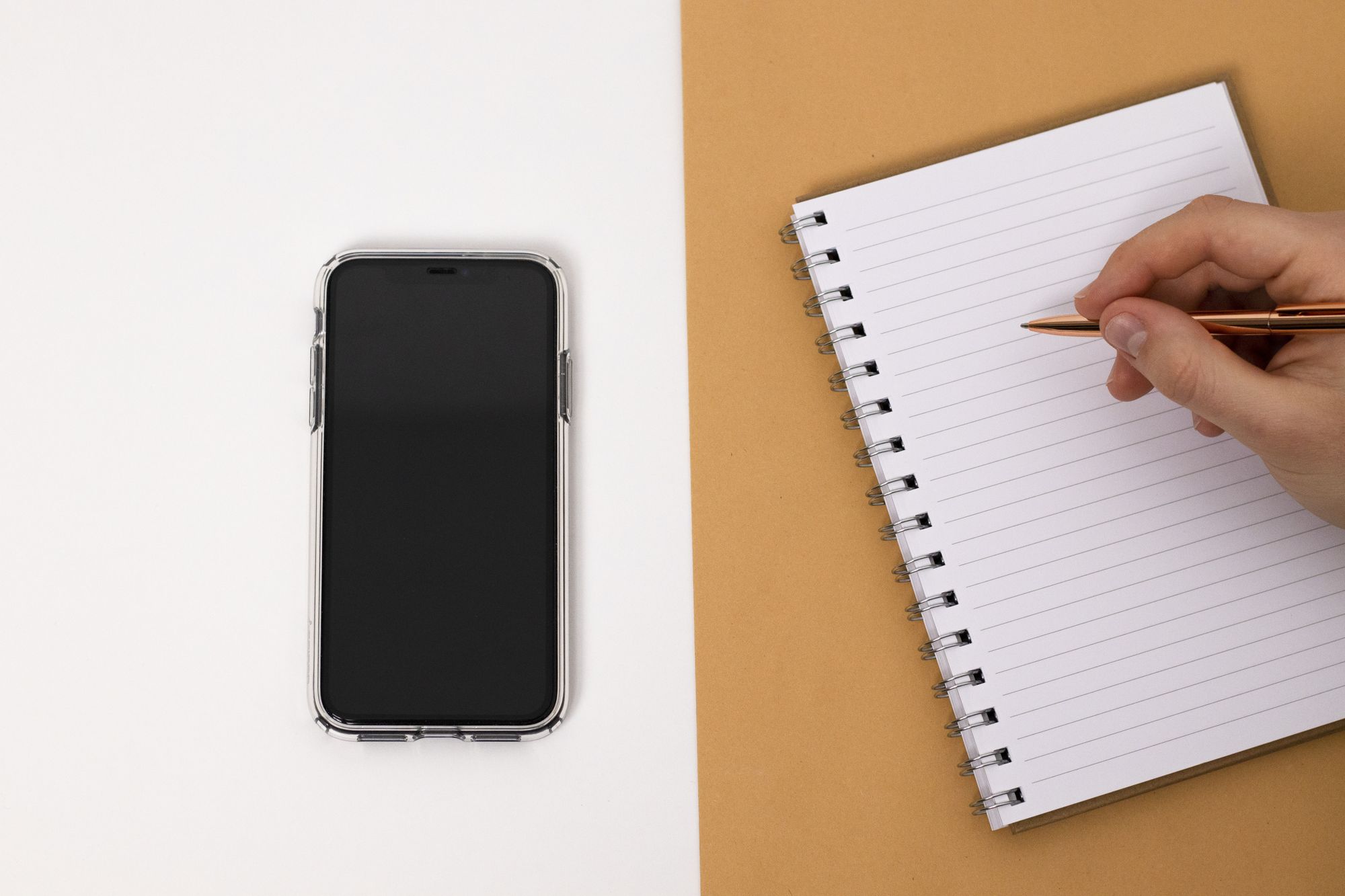
Photo by Mike Murray on Pexels. Stock photograph; not a product screenshot.
You want fewer reasons to keep checking your phone. You still need directions, messages, your camera, and the code that gets you into your bank account.
To turn your iPhone into a dumb phone-like setup, start with one Home Screen containing your essential tools. Move other icons out of sight, review which apps can interrupt you, and add access limits only where you want them. You can make these changes with built-in iPhone settings.
The first decision is which problem you're trying to solve: a crowded screen, too many interruptions, or opening certain apps when you'd rather do something else. Each needs a different kind of change.
The menu names below follow Apple's iOS 26 documentation, checked October 11, 2026. Other iOS versions may use different names. This is a documentation-based guide, not a hands-on device test.
Choose what “simpler” should mean on your phone
Start with the problem that bothers you most:
- Too many visible choices: simplify your Home Screen and optional widgets. This changes what you see when you unlock.
- Too many interruptions: review notification settings and, if useful, set up a Focus. This changes which alerts you receive and when.
- Too much access to particular apps: consider Screen Time limits or a Downtime schedule. This adds a separate layer of rules, with exceptions and controls you need to understand.
Apple documents Home Screen organization, Focus, and Screen Time schedules and limits as different controls. Hiding an icon isn't the same as restricting access to its app.
Home Screen organization: Source documentation
Focus: Source documentation
Screen Time schedules and limits: Source documentation
You can stop after the first layer if that meets your needs. More restrictions aren't automatically a better fit.
1. Write down the jobs your iPhone needs to keep doing
List functions before deciding which icons look good together. Your list might include:
- Calling and messaging important people.
- Navigation, transit passes, or rides home.
- Banking, payments, and account authentication.
- Work or school sign-ins.
- Health, accessibility, translation, or communication tools.
- Tickets, travel documents, and your camera.
Then write the app you use for each job. Some belong on your main page; others only need to remain easy to retrieve. There is no ideal number of essential apps. Someone who travels for work may need a different setup from someone mostly at home. Keep what makes your day work.
Before rearranging anything, take a screenshot of your current layout for reference. Avoid deleting apps as part of an initial layout experiment.
2. Build a minimalist iPhone Home Screen
Choose one page for the apps you want close at hand. For example, you might keep Phone, Messages, Maps, Camera, Calendar, and a music app. That's an example, not a required set.
For an icon you want off that page, press and hold it, choose Remove App, then Remove from Home Screen. The app stays in App Library. Apple's removal options.
Apple's removal options: Source documentation
To hide a whole page, hold an empty part of the Home Screen, tap the page dots, deselect that page, and finish with Done. Reselect it to bring the page back. In Settings → Home Screen & App Library, you can also send new downloads to App Library Only. Apple's Home Screen instructions.
Try retrieving one essential app you've moved before going further. If finding it already feels awkward, give it a more convenient place. A tidy page should still be useful when you're in a hurry.
3. Add a widget only if it earns its space
Choose a question you want answered at a glance: What's my next appointment? What's the weather? What do I need to remember?
On iOS 26, hold the Home Screen background, then use Edit → Add Widget. Choose an available widget and size, add it, and finish arranging the page. Holding a widget lets you edit its supported options; a Smart Stack has its own editing controls. Apple's widget guide.
Apple's widget guide: Source documentation
A single useful widget is a reasonable starting point. If you keep opening an app because the widget doesn't show what you need, change its configuration or remove it. Matching every block visually can wait.
For appearance, hold the background and choose Edit → Customize. Apple's options include dark and tinted styles. Large icons omit app names, so keep labels if they help you recognize things. Apple's appearance guide.
Apple's appearance guide: Source documentation
Choose a look you can read comfortably. A monochrome theme doesn't establish that an app is restricted or that you'll use it less.
4. Decide which interruptions you actually want
Make a short list of alerts that serve a purpose: messages from people you're waiting to hear from, a delivery, a work requirement, or an account warning. Then review the apps that interrupt you without a reason you value.
In Settings → Notifications, select an app and review its alert options. Available controls vary; badges are the counts shown on app icons. Apple's notification guide.
Apple's notification guide: Source documentation
A Focus is useful when your choices vary by situation. Under Settings → Focus, choose or create one, review its people and app notification exceptions, and optionally choose a Home Screen page or schedule. Apple's Focus setup.
Treat the page and the exceptions as separate decisions. An app being visible on a Focus page doesn't mean you've allowed its notifications. Likewise, putting a communication app out of sight isn't a substitute for reviewing its alerts.
Turn the Focus on and ask a willing contact to try the kind of call or message you need to receive. Test rather than assume your exceptions cover it.
5. Add Screen Time rules only where you want access limits
A simpler layout leaves apps available elsewhere on the phone. If that doesn't address your concern, decide whether you want a daily allowance or a scheduled period with fewer apps available.
In iOS 26, Settings → Screen Time → App Limits sets allowances for selected apps or categories. Downtime sets a schedule. Review Always Allowed for the access you need to retain.
These controls need deliberate configuration. Apple's guide says limits can be ignored by default. With a Screen Time passcode, Block at Downtime changes how scheduled restrictions behave. Don't assume either that every reminder blocks access or that every configured restriction is just a reminder. Apple's Screen Time instructions.
Also check Share Across Devices. When enabled for devices on the same Apple Account, it shares limits and schedules as well as usage information. It isn't only a reporting preference. Apple's Screen Time overview.
Apple's Screen Time overview: Source documentation
Try any new rule during a time when you can check and adjust it. Keep the passcode recoverable and review the actual behavior before relying on the setup during travel, work, or another important routine.
6. Run this essential-task check before calling it finished
Copy the checklist below and fill in the app names that matter to you. Run it with any Focus or Screen Time rules you intend to use active.
- ☐ Reach someone: I can find __________ and make the kind of call or send the kind of message I need.
- ☐ Be reached: A willing contact's test __________ arrived as expected with my chosen settings active.
- ☐ Get somewhere: I can open __________ and retrieve the route or travel pass I use.
- ☐ Sign in: I can retrieve the authentication method I need for __________. I haven't removed it while rearranging apps.
- ☐ Handle an everyday task: I can find __________ for a payment, ticket, accessibility function, or other necessary job.
- ☐ Recover: I know which setting to change if this arrangement gets in the way.
These are checks for you to perform, not claims that every combination of apps and settings has been tested. If a task fails, fix that specific problem before adding another layer of rules.
How to undo a change that doesn't suit you
Match the fix to the change you made:
- An app is out of sight: find it in App Library, then hold and drag it back to a Home Screen page. Restore hidden pages through the page dots. Home Screen recovery.
- An alert isn't behaving as expected: revisit the app's notification settings and the exceptions in any active Focus. Retest with the relevant person or app.
- A Screen Time schedule or allowance is wrong: turn off Downtime's scheduled option or delete the relevant App Limit. Review the associated exceptions and cross-device setting. Screen Time controls.
Keep a note of the changes you make. If you later decide to tighten a rule, you'll know what is already in place.
Common questions about making an iPhone simpler
Prepared with AI assistance using the linked Apple documentation. The checklist is an editorial tool for readers to try; no personal testing or measured screen-time result is claimed.
Explore Ease: Curious about an app-based approach? See what we're building with Ease, our iPhone app in development. You can start with the built-in setup above.
Sources & further reading
- Apple — Organize the Home Screen and App Library on your iPhone Checked Oct 11, 2026
- Apple's Focus setup Checked Oct 11, 2026
- Apple's Screen Time instructions Checked Oct 11, 2026
- Apple's removal options Checked Oct 11, 2026
- Apple's widget guide Checked Oct 11, 2026
- Apple's appearance guide Checked Oct 11, 2026
- Apple — Use notifications on your iPhone or iPad Checked Oct 11, 2026
- Screen Time controls Checked Oct 11, 2026